Adding your Bot
Remember our bot? It’s now alive, but it’s sitting in Discord jail and not in any server like it’s supposed to, cause we haven’t invited it to any server yet. So let’s do that now!
Bot invite links
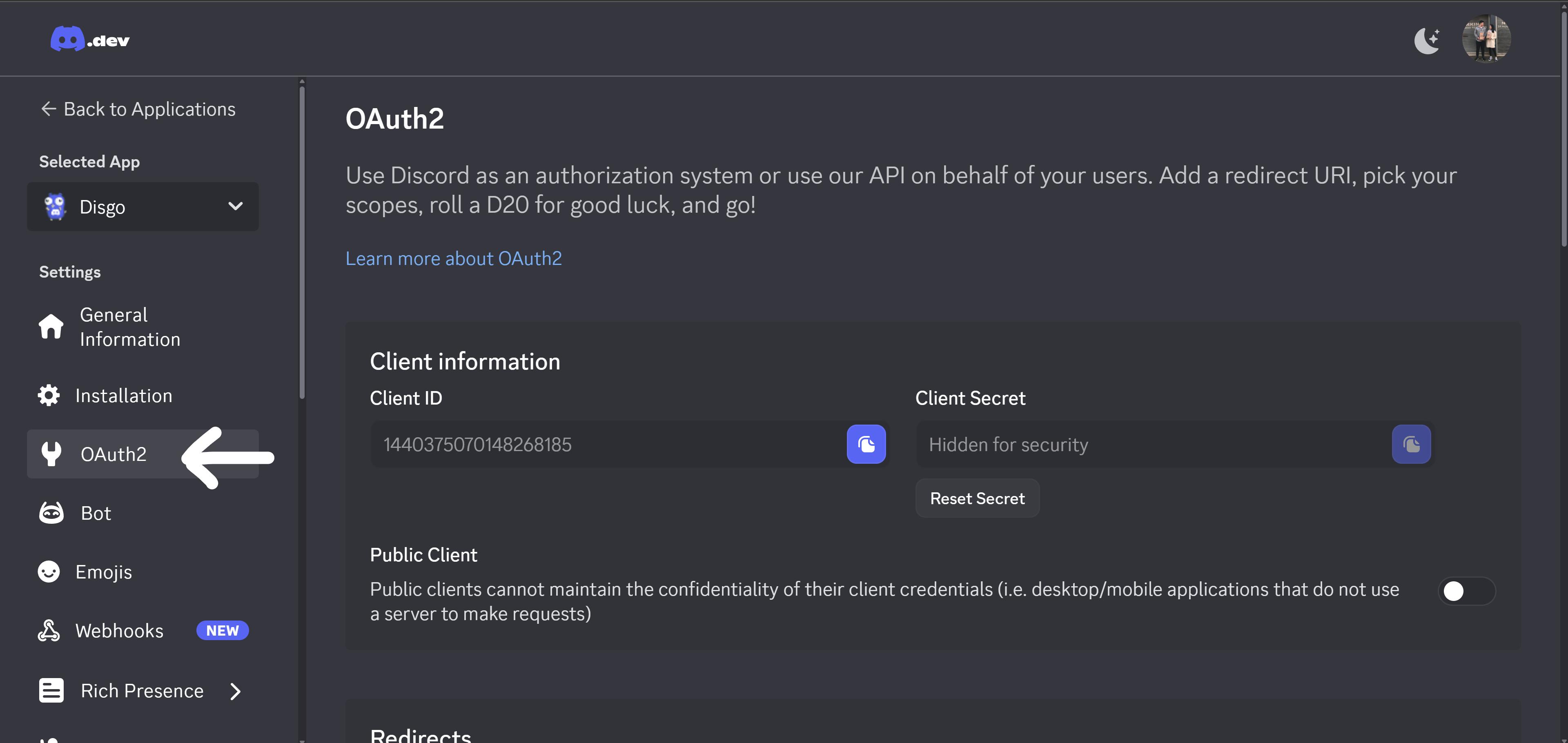
Head over to the “OAuth2” section in the sidebar on the left
Scroll down to the “OAuth2 URL Generator”
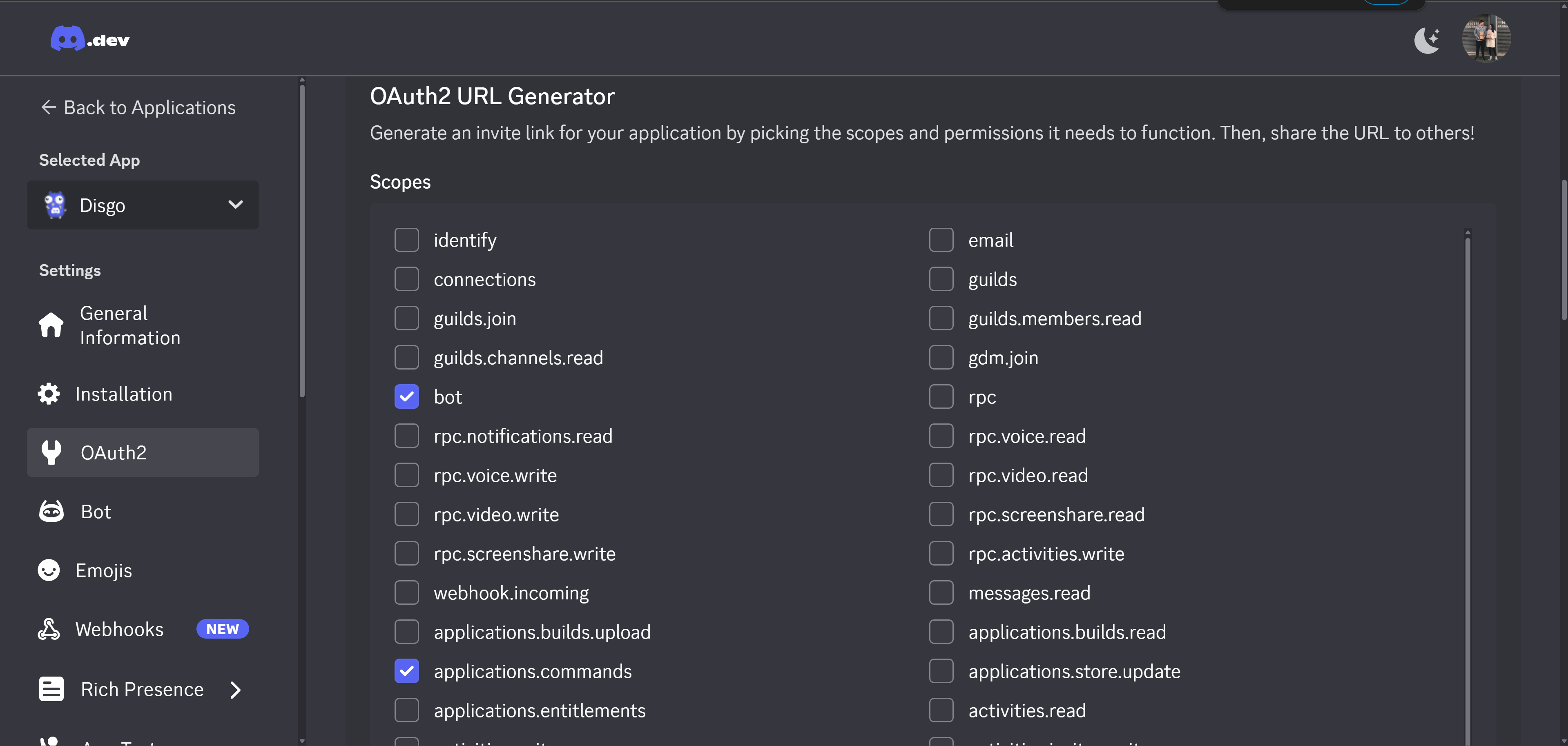
Here you’ll find checkboxes where you can specify what permissions you want your bot to have when you invite it to a server and the scope that it should operate on. Our most important one is bot, applications.commands, & Administrator for this tutorial as that is what will allow us to invite our App as a Discord Bot and give it permission to be able to run commands.
Administrator permission unless you actually need it, so it’s recommended to fine tune the scope & the permissions your bot needs beyond this tutorialFinally, select either “Guild Install” (if your bot should be run within a guild) or “User Install” (if your bot can be used by a user personally in a server or in DMs)
Copy the generated URL, select which server you want to install your bot to and Congratulations!
You’re finally ready to code an awesome discord bot using DisGo